
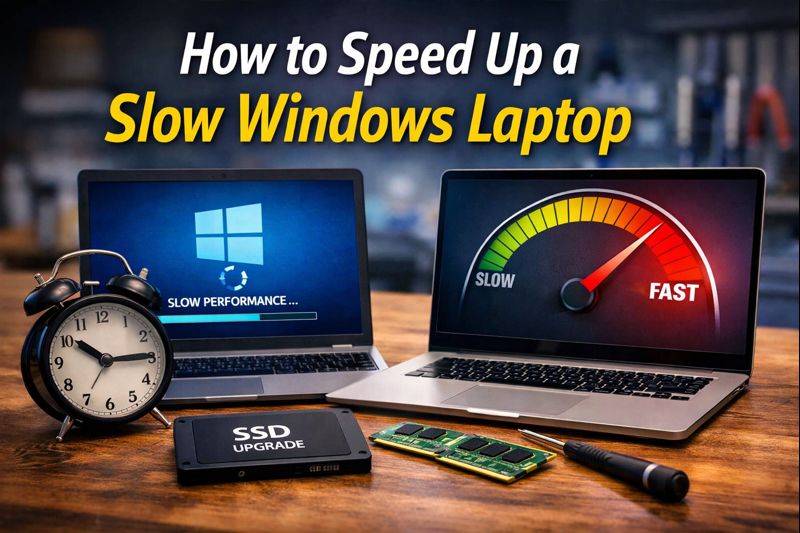
How We Help Windows Laptops Run Like New — A Story from Our Workshop
It was a typical Tuesday morning at Dead or Alive Technology in Wishaw. A customer walked in carrying an ageing Windows laptop, frustration written across their face. “It used to be fast,” they said, “but now it feels like it’s stuck in the slow lane.” Doesn’t matter whether someone uses their laptop for work, study, or everyday browsing. When performance drops, productivity and patience disappear with it.
At our repair centre, we see this scenario again and again. But the good news is this: most slow laptops aren’t “broken” they just need the right attention. With the correct checks and targeted improvements, you can restore smooth performance and get your device running reliably once more. Here’s how we approach this transformation.
Start with the Essentials
When a laptop feels sluggish, the first thing to do isn’t a major overhaul, it’s to make sure the basics are in order.
Imagine your laptop like a garden. If you never pull the weeds or water the plants, growth becomes choked and slow. Similarly, a laptop benefits from regular care. One of the simplest yet most effective steps is a full restart: this clears temporary memory (RAM), closes background tasks, and gives the system a fresh start.
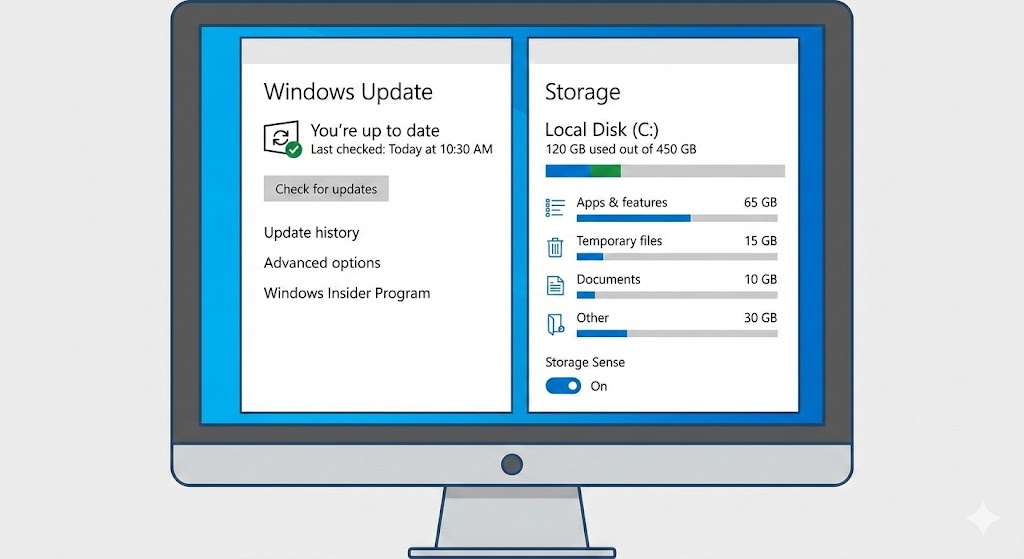
Next, we always check that Windows itself is up to date. Running the latest version of Windows ensures you have performance improvements and security patches that can make a noticeable difference. A quick visit to Settings → Update & Security → Windows Update will reveal if there’s anything waiting to be installed.
And space matters too. When your main drive is nearly full, Windows can slow down significantly. Cleaning out unneeded files can help the system breathe.
Tame Startup Programs and Background Tasks
Once we’ve handled the basics, we move on to the things that quietly work against your machine’s performance.
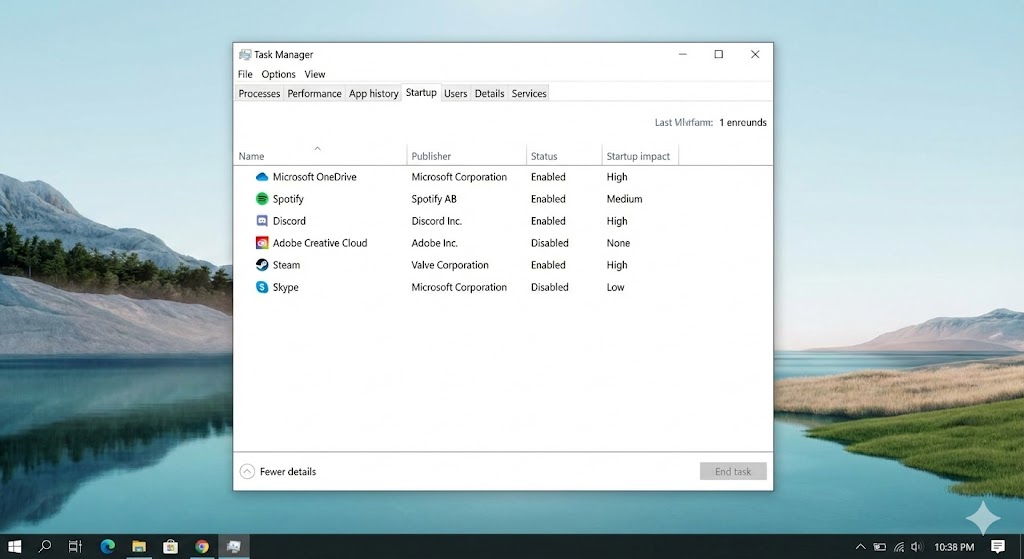
Many applications launch automatically when Windows starts. Cloud sync tools, old antivirus software, chat apps, or printer utilities will happily open themselves in the background — consuming precious resources before you’ve even logged in.
Opening Task Manager (Ctrl + Shift + Esc) and navigating to the Startup tab lets you see what’s launching at boot. Disabling anything you no longer need can speed up startup times and free up resources during use.
It’s a bit like clearing clutter off your kitchen counter before dinner prep — when there’s space, work flows faster.
Scan for What Shouldn’t Be There
Sometimes the culprit isn’t settings or clutter, it’s malware or unwanted software. These can stealthily run in the background, eat up system resources, and drag performance down.
Windows Security has built-in tools for checking and removing malware. Running a full scan is a quick way to rule out malicious interference and gives you peace of mind that your laptop isn’t being slowed by something harmful.

Upgrade the Stuff That Actually Makes a Difference
There comes a point where tweaks and settings adjustments just aren’t enough, that’s because the hardware itself is holding the laptop back.
If your laptop still uses an older mechanical hard drive, the difference upgrading to a solid-state drive (SSD) can make is dramatic. SSDs start up much faster, open files instantly, and improve overall responsiveness in ways that no amount of cleaning can match.
Memory upgrades also deliver noticeable improvements. Laptops with only 4 GB of RAM can struggle with modern Windows versions, while 8 GB or more provides a much smoother experience, especially if you like to multitask.
At Dead or Alive Technology, we perform SSD and RAM upgrades regularly for customers around Wishaw and North Lanarkshire. The difference is often like going from a congested country road to an open motorway.

When to Let the Professionals Take Over
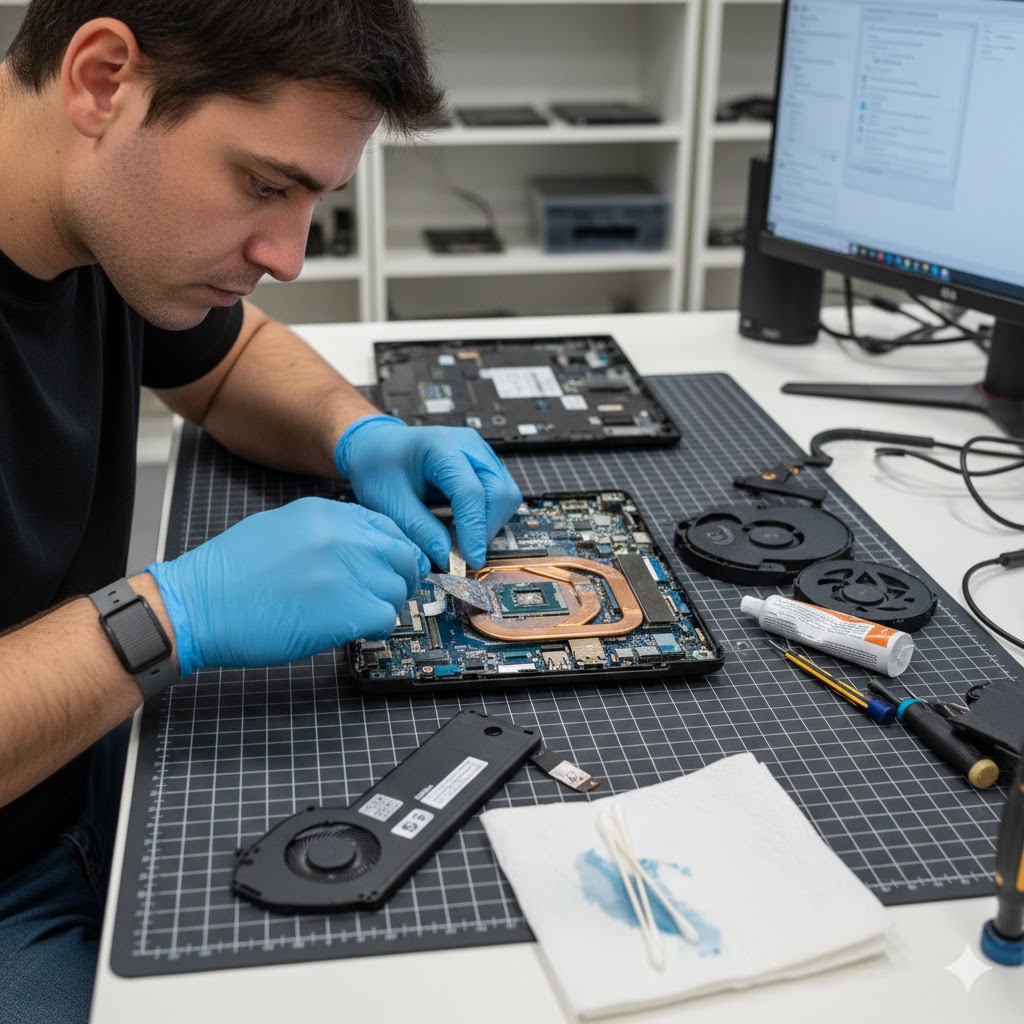
There are times when even hardware upgrades aren’t enough to get a laptop running optimally. Heat build-up from clogged vents or worn thermal paste can force the system to throttle its performance, making it slow under load. A professional thermal service — where dust is removed and cooling is restored — can bring back consistent speed.
And for laptops that have been used for years, a clean reinstall of Windows can wipe away corrupted files, old drivers, and lingering software ghosts. We always back up data first and restore it safely after the fresh install.
Final Thoughts: Your Laptop Deserves Better
A slow Windows laptop doesn’t have to stay slow. With a mix of simple maintenance, practical tweaks, and thoughtful upgrades, most performance woes can be resolved. And if you ever feel out of your depth, remember that professionals are here to help too.
Whether it’s a quick diagnostic, a hardware upgrade, or a full system restore, you don’t have to fight with sluggish equipment on your own.
👉 Call us on 01698 909099 or visit Dead or Alive Technology in Wishaw to book a performance service and get your laptop back up to speed.